← Duk batutuwa
Asusu da na'urori
Log in on a new phone or computer
How to bring your AYA account to a new device with a one-time code by email or with a passkey.
Got a new phone, or want to see your products on your computer? Log in with the email you secured the account with, or with a passkey. Your products, orders and settings come with you.
How to log in with email
- Go to ayafamily.dk and tap Log in.
- You see Welcome back. Tap Log in with email.
- Enter your email and tap Send code.
- You get a 6-digit code by email (Check your email). Enter the code and tap Verify.
- You land on the home screen with your products.
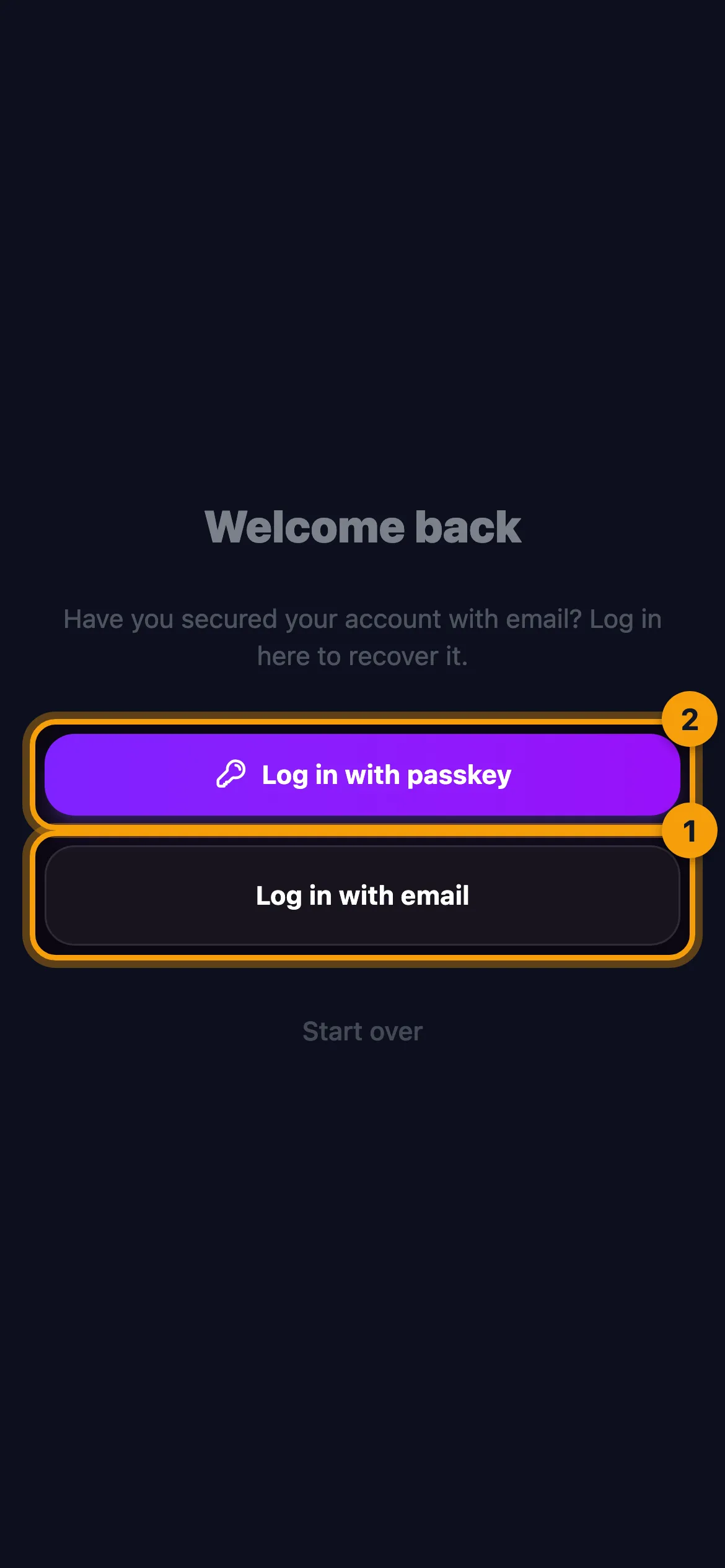
How to log in with a passkey
If you have secured the account with a passkey, you can tap Log in with passkey and use Face ID, Touch ID or your phone's passcode. The passkey has to be available on the device you are logging in on.
A new login logs your other devices out by default. It is a safeguard, so an old phone in a drawer cannot see your children's location.
Already inside the app?
If you are already in AYA on the new device, tap the round icon in the top right corner and then Log in with email under Your account. It works the same way.
Good to know
- If you never secured the account with an email or a passkey, it cannot be moved to a new device. Add an email now, while you still have the old phone.
- If the code does not match, it says Wrong code - try again.
- If no code arrives, check your spam folder. If you typed the email wrong, tap Use a different email and try again.
- If you open a login link from an email, the page logs you in and takes you on. If the link is too old, it says Link is invalid or expired.
- Only tap Start over if you want to begin a brand new account on the device.
Ba ka sami amsar ba?
Rubuto mana