← بارلىق تېمىلار
كۈندىلىك ئىشلىتىش
The product page: map, history and settings
What you see when you open a product in AYA, and where to find the product's settings behind the gear icon.
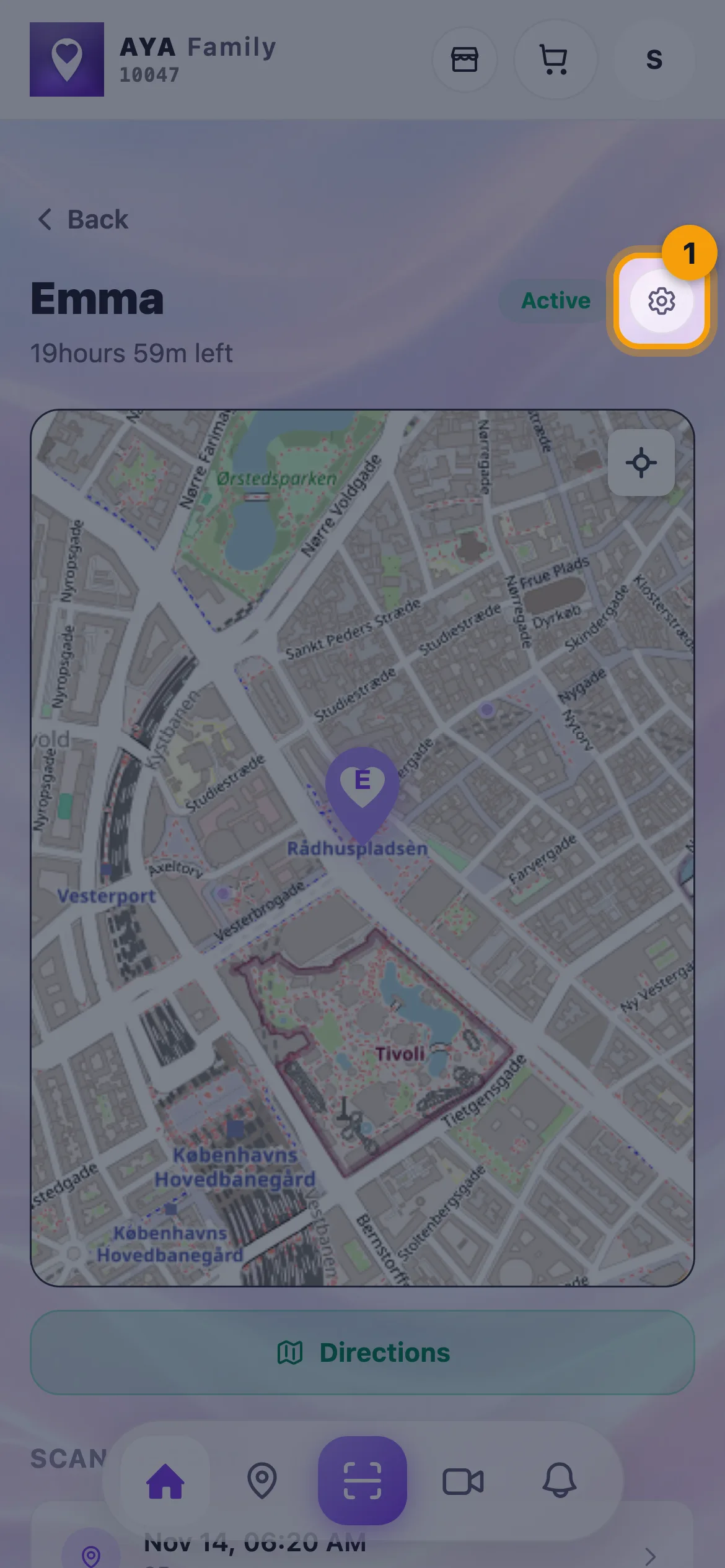
When you tap a product on the home screen, its own page opens. Here you see whether it is active, where it was last scanned and who has contacted you.
What you see on the page
- At the top is the product's name and the time left. A wristband counts down in hours and minutes, a label and a security mark in days.
- To the right of the name is the status: Active, Paused or Expired.
- The map shows where the product was last scanned. If the location only comes from the internet connection, it is marked as approximate.
- Below the map, Scan history lists the latest scans that have a location. If the product has not been scanned yet, it says No scans yet.
- At the bottom, Calls & messages lists the calls and messages you have received from finders.
Settings behind the gear icon
Tap the gear icon in the top right corner. Settings opens as a sheet at the bottom of the screen. What the sheet contains depends on the product:
- Edit name for wristbands and security marks, or Item for labels.
- Notifications: notifications on or off for this product only.
- Pause: Active or Paused.
- For a luggage tag: Contact phone, whether the number is Visible to finders, and Travel Book.
- People and Hand over to a new owner, when sharing is turned on for your account.
- Remove from my app at the very bottom.
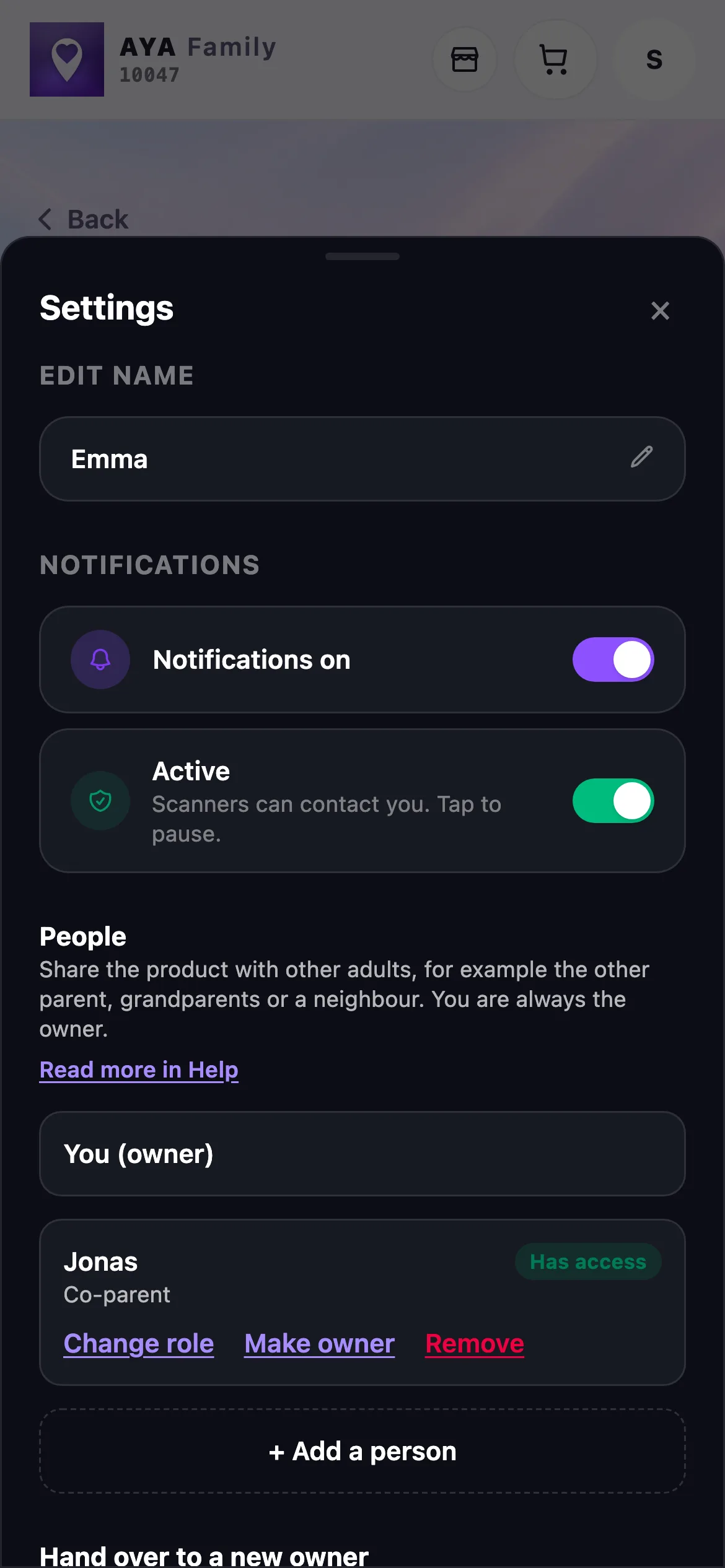
Tap outside the sheet or the cross to close it. Changes are saved straight away.
The map of all products
To see all your products at once, tap Map in the bottom bar. Tap a product on the map to see when it was last seen, and choose Show history, Walking route or Driving route.
Good to know
- If you are a co-parent on a product, you see a banner at the top, and you do not see payment, sharing, hand-over or Remove from my app.
- A security mark that is about to expire shows a renewal button at the top of the page.
- If you bought the product yourself with a yearly renewal, Yearly renewal is shown at the top of the page. There you stop the renewal with Cancel renewal and undo it with Undo cancellation for as long as the paid period runs.
جاۋابنى تاپالمىدىڭىزمۇ؟
بىزگە يېزىڭ