← Zonke izihloko
Ukuqalisa
Add your email
Link an email to your AYA account, so you can log in on a new phone and get an email if a notification does not get through.
You do not need an account to get started with AYA. But if you link an email to your account, you can log in on a new phone, and you get an email if a notification does not get through.
How to add it
- Tap your profile in the top right to open Settings.
- Under Your account, tap Log in with email.
- Enter your email and tap Send code.
- Enter the 6-digit code from the email and tap Verify.
- Your account now says Secured with email together with your email.
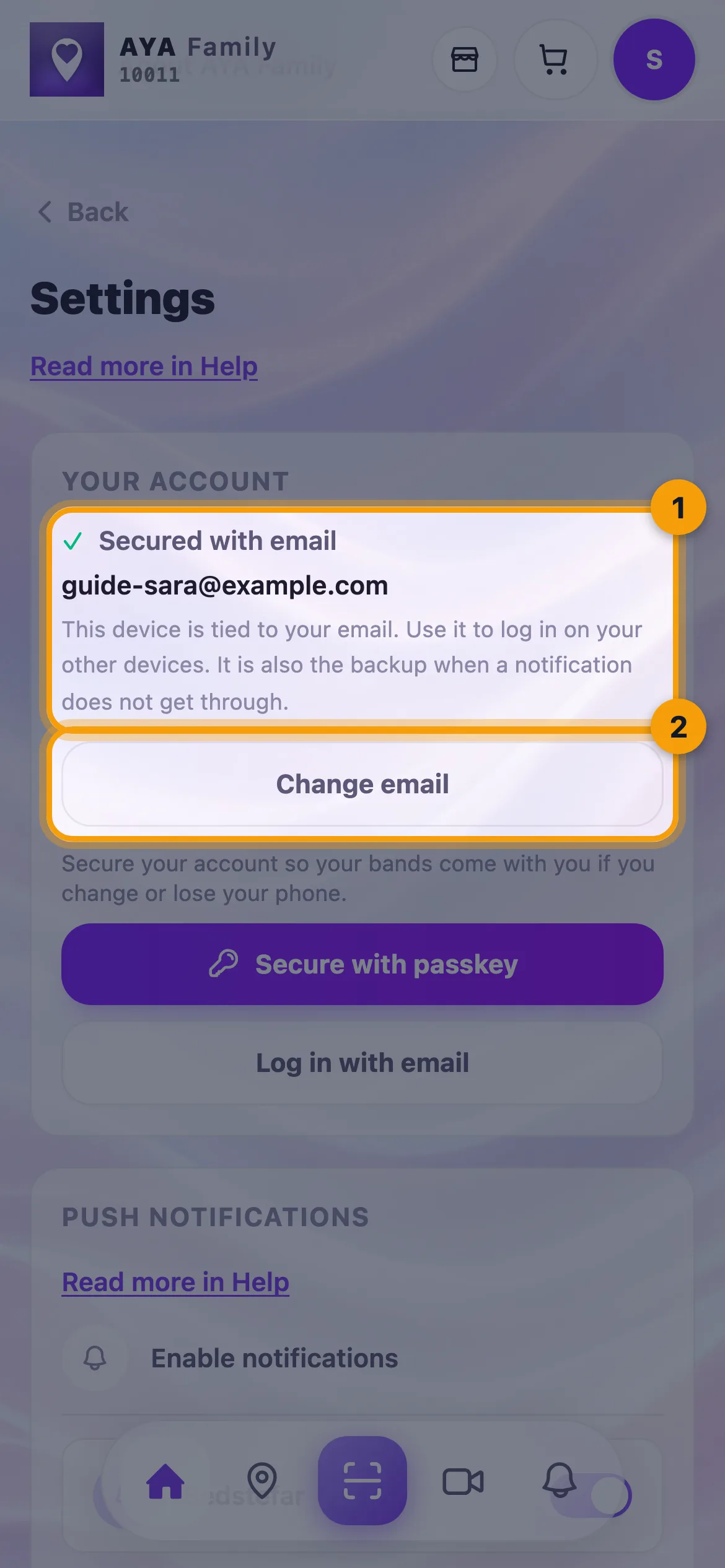
If the email already belongs to an AYA account, you bring that account onto this phone instead. Your products are then together in one place.
Change your email
- Tap Change email under Your account.
- Enter the new email and tap Send code.
- Enter the code we sent to the new email and tap Verify. It says "Your email is now ..." with the new address.
Good to know
- Your email is what you log in with on your other devices. It is also the backup when a notification does not get through. AYA never sends SMS.
- Some products, for example reusable wristbands, luggage tags and security marks, may need an email on the account before they can be activated. You are then asked along the way.
- You can also secure your account with Face ID or Touch ID in Settings.
- To get started on a new phone, open AYA there and tap Log in with email with the same email.
Akuyifumananga impendulo?
Sibhalele