← Lohahevitra rehetra
Fizarana amin'ny fianakaviana
Add a contact
Make a grandparent, a neighbour or a relative a contact, so they get messages and calls when the product is scanned.
A contact is an extra adult who gets a message and a call if someone finds the product, for example a grandparent, a neighbour or a relative of a senior. A contact cannot change anything on the product.
How to do it
- Open the product and tap the cog (Settings).
- Find People and tap Add a person.
- Enter the person's name, for example Grandma.
- Choose the role Contact.
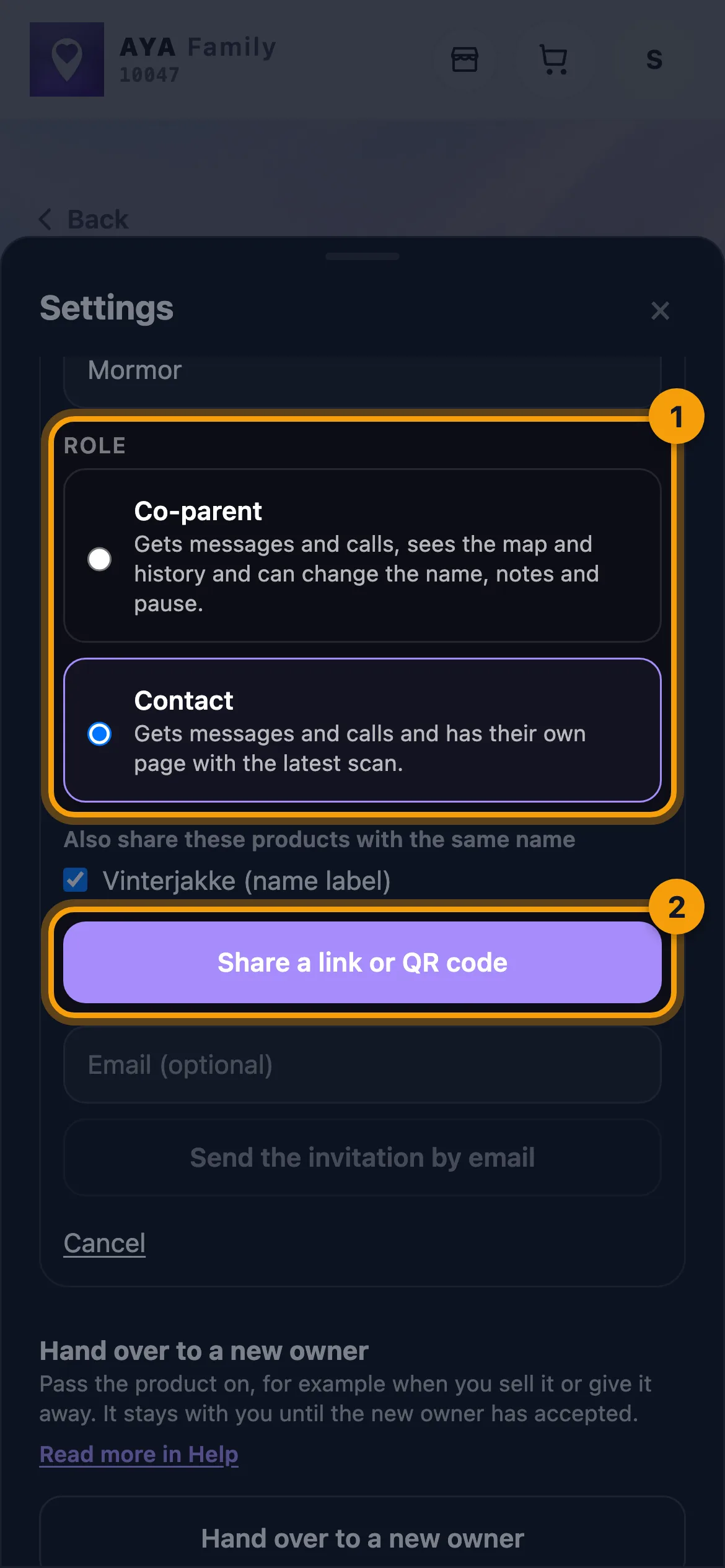
- Tap Share a link or QR code and send the link with Share, Copy link or Show QR code. You can also enter an email address and tap Send the invitation by email.
- The contact opens the link on their own phone and taps Accept. Until then they get nothing.
The contact's own page
Once the contact has accepted, the product appears under Shared with me on their home screen. Tapping Open shows a simple page with the latest scan.
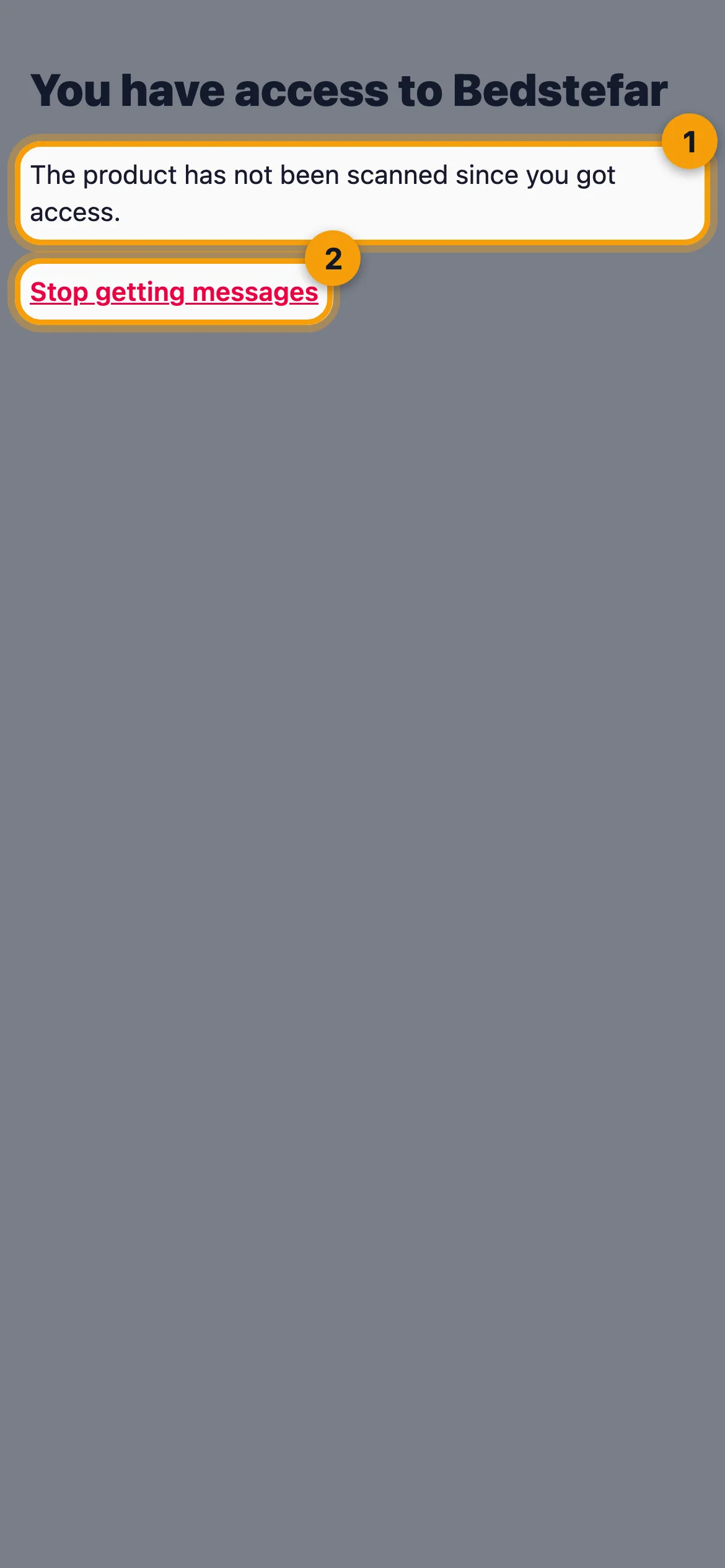
- At the top it says You have access to and the product's name.
- Last scanned shows the time, and Show on map opens the location. If the location is only an estimate, it says Approximate location.
- If a call is going on right now, the contact can tap Join the call.
- If the contact no longer wants messages, they tap Stop getting messages and then Yes, stop.
Good to know
- A contact gets messages and calls but does not see history or messages and cannot change the name, notes or pause. If the person should be able to do that, choose Co-parent.
- You can change the role at any time with Change role under the person in the list.
- There can be at most 5 people besides you on one product.
- On a reusable wristband the section is called Extra contacts until sharing is open for you. There you can add up to two people with a name and an email address.
Tsy hitanao ny valiny?
Manorata aminay