← Բոլոր թեմաները
Ամենօրյա օգտագործում
Edit the name and notes on a product
How to fix the name on a wristband or security mark, the item on a label and the message for the finder.
Spelled a name wrong, or is another child wearing the wristband today? The name is what the finder sees, so it is worth getting right.
How to change the name
- Open the product from the home screen.
- Tap the gear icon in the top right corner.
- Under Edit name, tap the current name.
- Type the new name and tap Save name. Changed your mind? Tap Cancel.
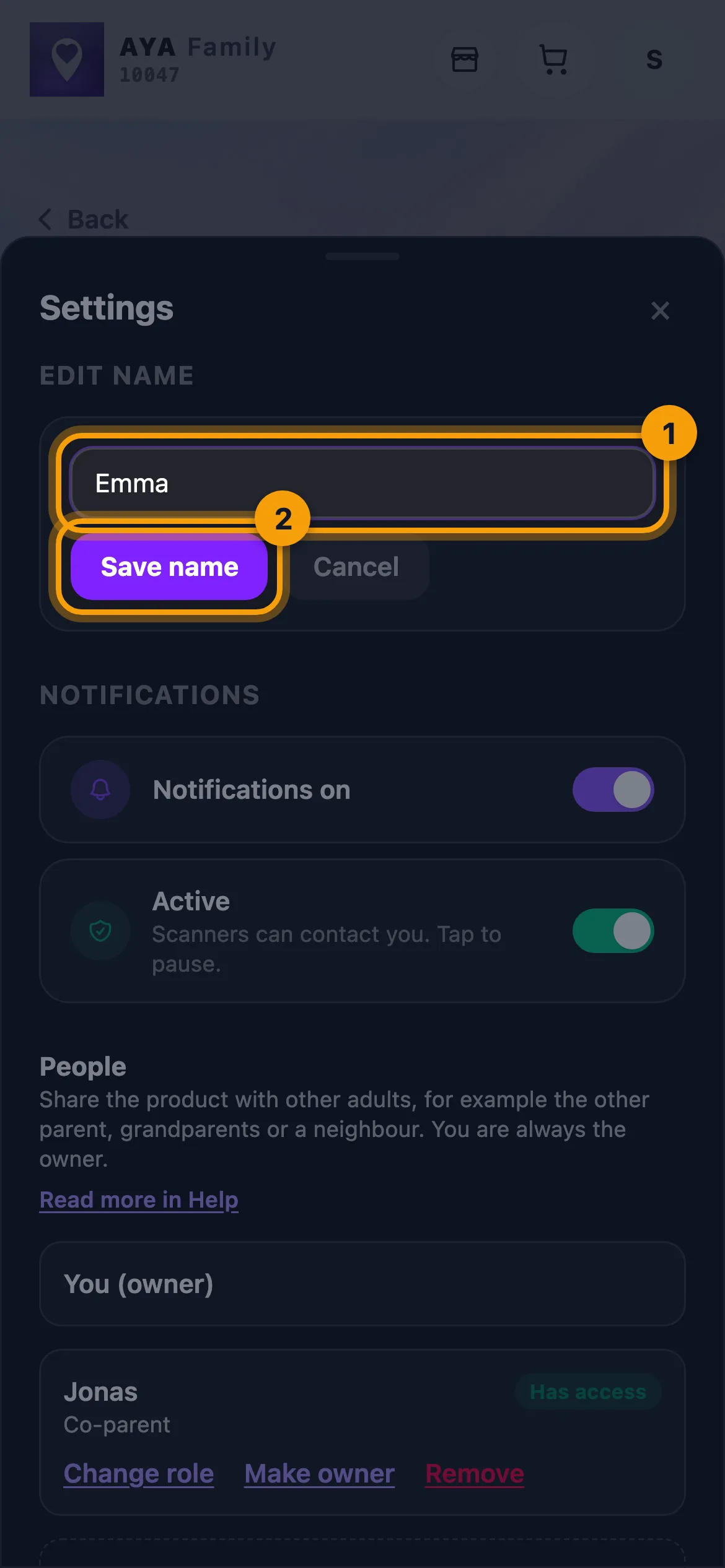
The name can only be changed while the product is active. An expired product does not show the field.
Labels: only the item can be changed
On a name label the child's name is printed on the label itself, so it cannot be changed in the app. You can change what the label is attached to:
- Open the label and tap the gear icon.
- Tap the field under Item.
- Type, for example, "Winter jacket" and tap Save name.
Keyring, ID card and pet tag
For these you edit directly on the product's page, not behind the gear icon. Under The finder sees you can see what the finder is shown. Tap Edit to change the name and Message for the finder (for a keyring also What is it attached to?), then tap Save when you are done. The message for the finder is shown exactly as you write it and is not translated.
The message for the finder is shown to anyone who scans. Never write an address or codes.
Good to know
- A security mark uses the same field for the item's name, such as "Sara's Mac".
- A reusable wristband for a senior can have a Health note for the finder on the product's page. Read more in Reusable wristband.
- A co-parent can also edit names and notes.
Չգտա՞ք պատասխանը
Գրեք մեզ