← Усе тэмы
Штодзённае выкарыстанне
Activate more products in the app
How to scan your next AYA product straight from the app so it joins the same account as the others.
If AYA is already on your phone, activate the next product from inside the app. That way it lands on the same account as the rest, and you see it on the home screen straight away.
How to do it
- Open AYA and go to the home screen (Home in the bottom bar).
- Tap Activate my AYA product. You can also tap the round scan button in the middle of the bottom bar.
- Allow the app to use the camera and point it at the QR code on the product (Point camera at QR code).
- For a wristband, enter the child's name and tap Activate wristband. For a label, the child's name is already printed, so you only choose what the label is attached to.
- When you see Wristband activated! or Label activated!, the scanner closes by itself and the product appears on the home screen.
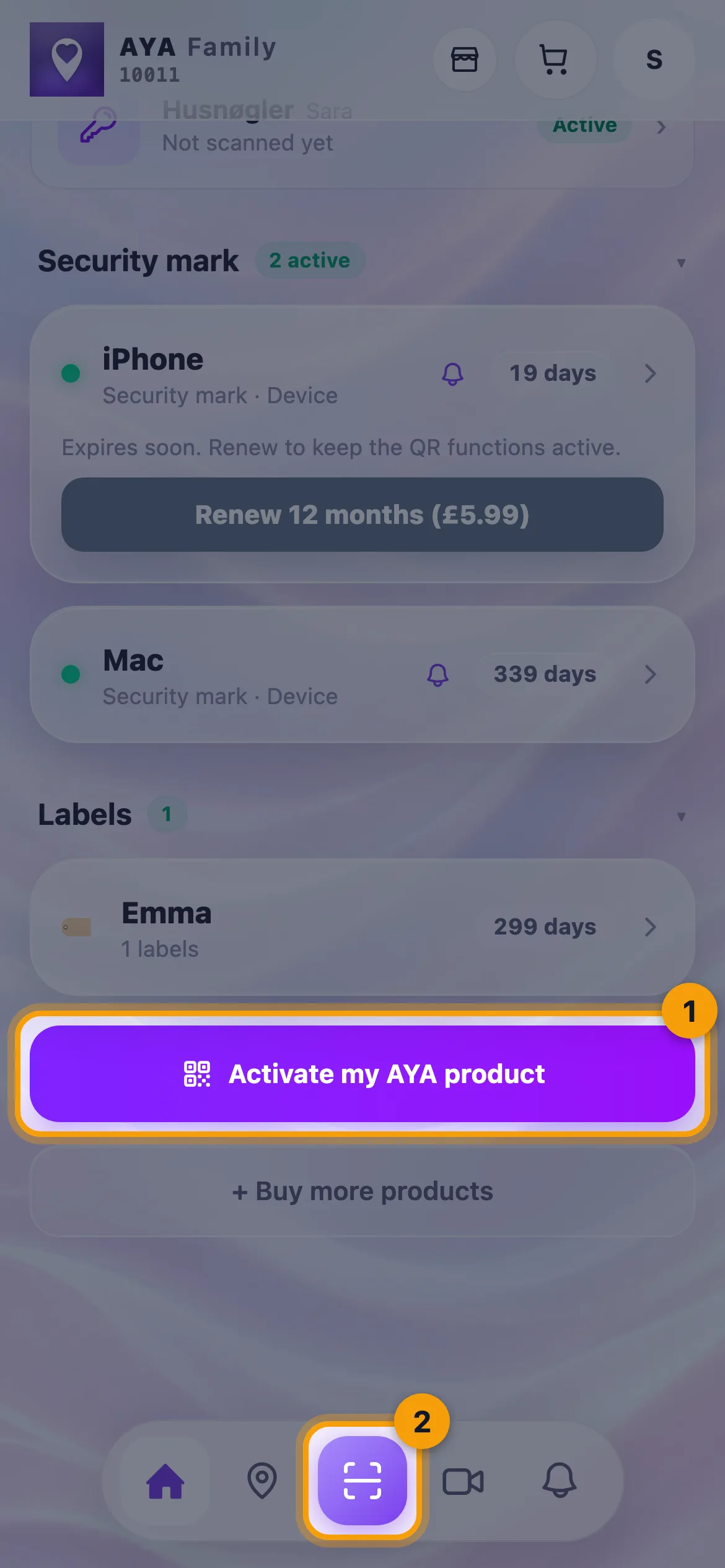
Some products have their own activation page, such as the security mark, the keyring and the ID card. If you scan one of them, the app takes you straight there and you carry on from that page.
Ready to activate
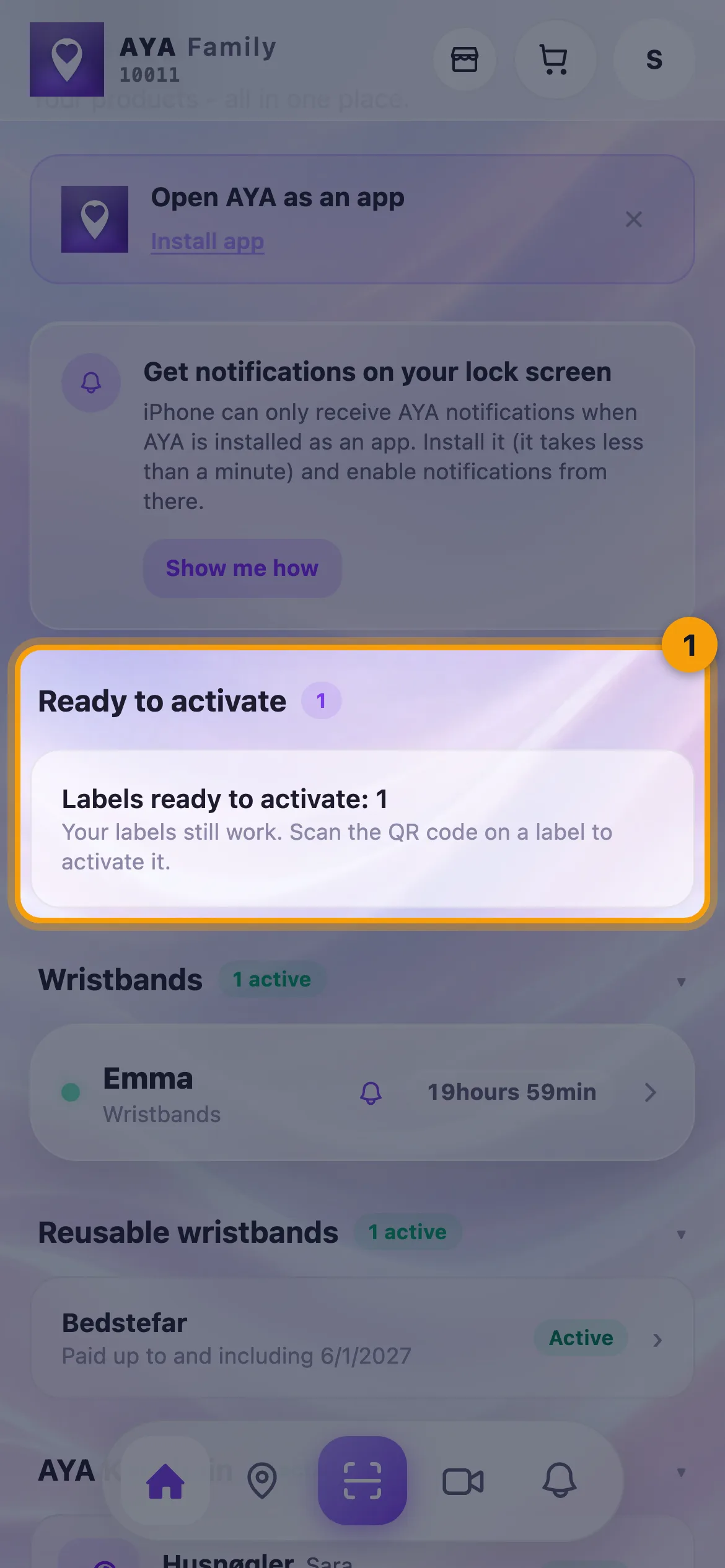
If you have bought products that are not activated yet, the home screen lists them under Ready to activate with a count. This covers security marks, labels and products from a pack. The card is only a reminder: you always activate by scanning the QR code on the item itself.
Good to know
- If you scan a product that is already yours, the app shows Your wristband and View details so you can open it.
- If you scan a product that has expired, the scanner tells you.
- If the product needs an email on the account, the app takes you to the activation page where you enter it.
- If your phone blocks the camera, allow camera access for AYA in your phone's settings and try again.
Не знайшлі адказ?
Напішыце нам